Security: Password and 2FA
Changing your password
Go to Settings > Security. Enter your current password, new password (minimum 8 characters), and confirm.
Two-factor authentication (2FA)
2FA adds an extra layer of security. When enabled, you need both your password and a code from an authenticator app to log in.
Setting up 2FA
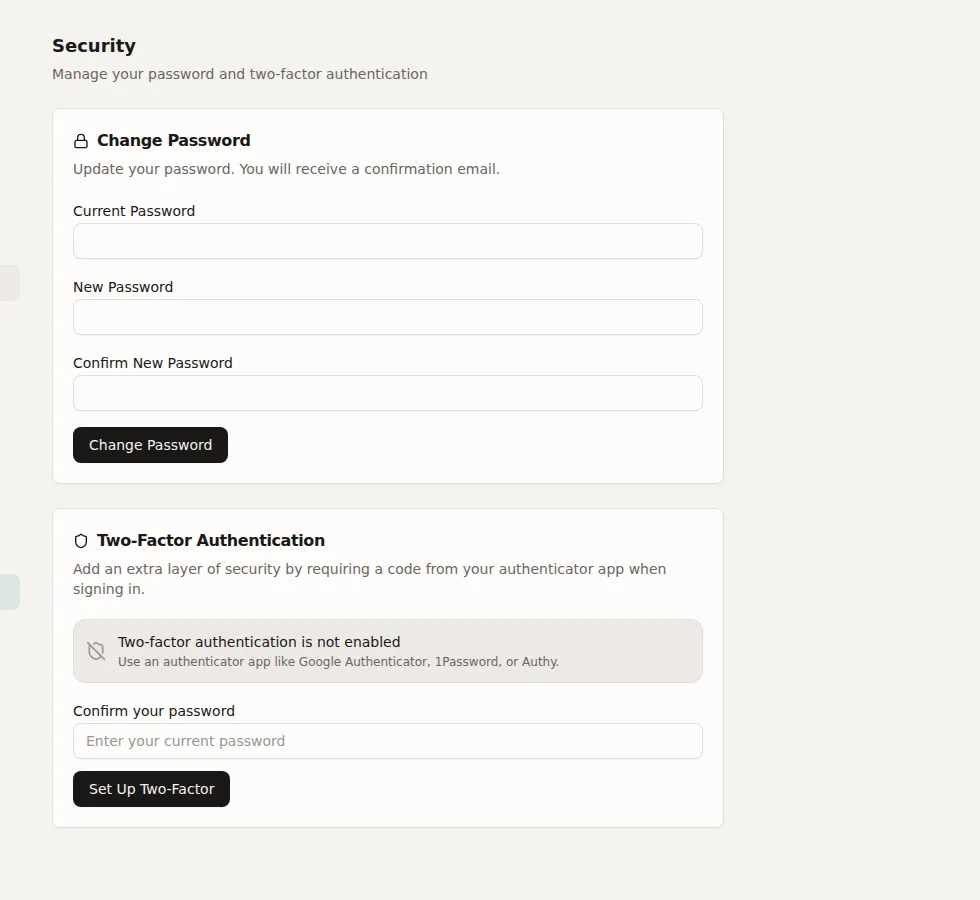
- Go to Settings > Security > Two-Factor Authentication
- Enter your password to confirm identity
- Scan the QR code with an authenticator app (Google Authenticator, 1Password, Authy)
- Or manually enter the secret key
- Save the backup codes in a safe place
- Enter the 6-digit code from your app to verify
- 2FA is now active
Disabling 2FA
Click "Disable Two-Factor" and enter your password to confirm.
Backup codes
When setting up 2FA, you receive backup codes. Each code can be used once if you lose access to your authenticator app. Store them securely.