Team Management and Roles
Invite team members to collaborate in your organization. Designed for operations teams, not solo store owners.
Roles
| Role | Permissions |
|---|---|
| Owner | Full access. Manage team roles, organization settings, and delete the organization. |
| Admin | Manage settings, carriers, stores, and integrations. Invite Members and Viewers. |
| Member | Day-to-day operations: fulfill orders, adjust inventory, manage products and purchase orders. |
| Viewer | Read-only access to all data. Cannot make changes. |
Inviting a team member
- Go to Settings > Team
- Click Invite Member
- Enter their email address and select a role
- Click Create Invite Link
- Share the link with your team member (valid for 7 days)
The invited person clicks the link, creates an account (or logs in), and is automatically added to your organization.
Managing members
- Change role -- Owners can change any member's role (except other Owners)
- Remove member -- Owners can remove anyone. Admins can remove Members and Viewers.
Pending invitations
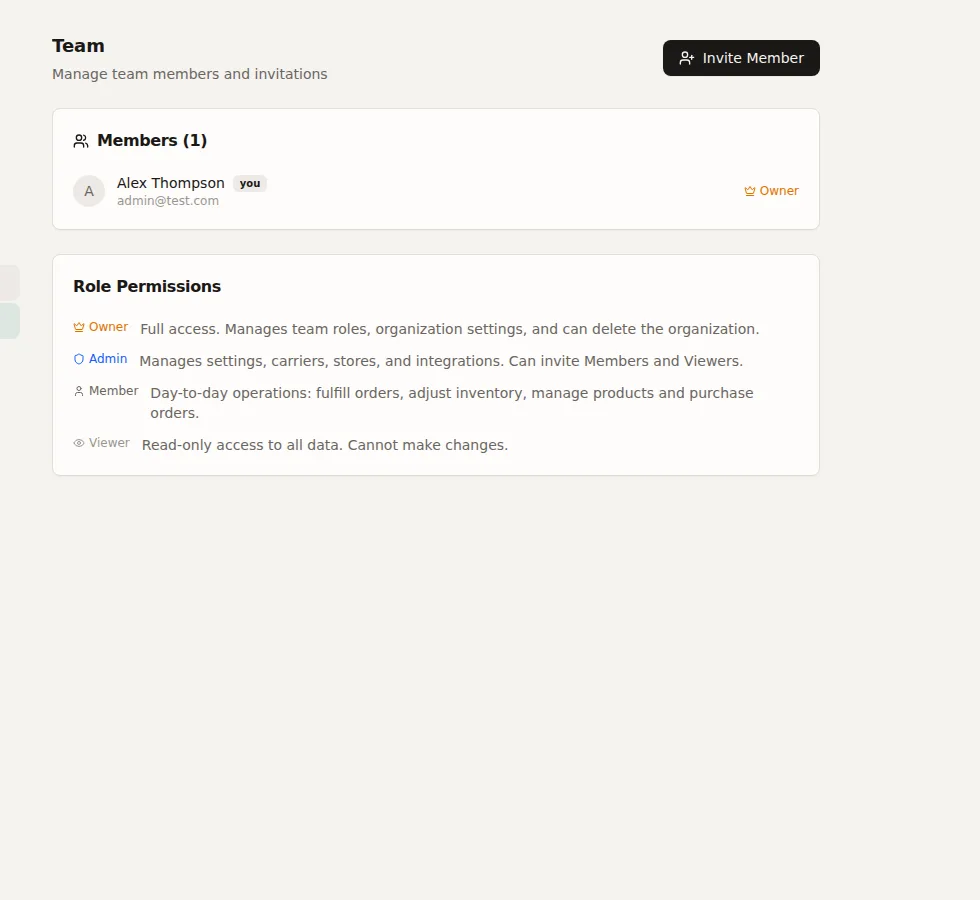
The Team page shows pending invitations with invited email, assigned role, who invited them, expiration date, and actions (copy link, resend, or cancel).