Adjusting Stock Manually
You can adjust stock for any product at any time. Every adjustment is recorded in the audit trail.
Use manual adjustments when: You have done a physical count, received stock outside the PO system, need to write off damaged goods, or need to correct an error. For receiving from a supplier, use PO receiving instead.
From the Products page
Click the adjustment icon next to any product in the products table to open the adjustment dialog.
From the Product Detail page
Click "Adjust Stock" on the product detail page.
Making an adjustment
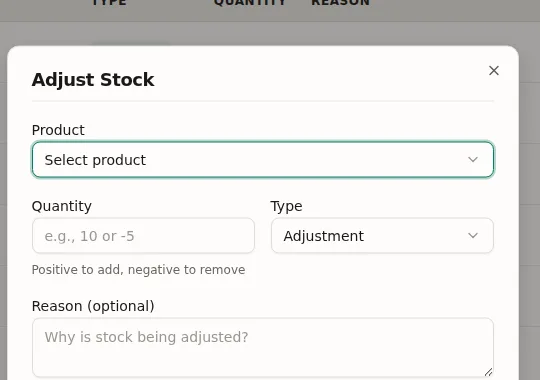
- Select the product (pre-filled if you came from a product row)
- Select the location (if multi-location is enabled; otherwise uses default)
- Enter the quantity change: positive to add stock, negative to remove
- Select a reason: Adjustment, Counted, Damaged, Return, or Other
- Optionally enter a reference (e.g., a PO number or note)
- Click Save
What happens
- The InventoryLevel record is updated with the new on-hand quantity
- A StockMovement record is created for the audit trail
- The product's cached stock totals are recalculated
- The new available quantity is pushed to WooCommerce via two-way sync